Add pages
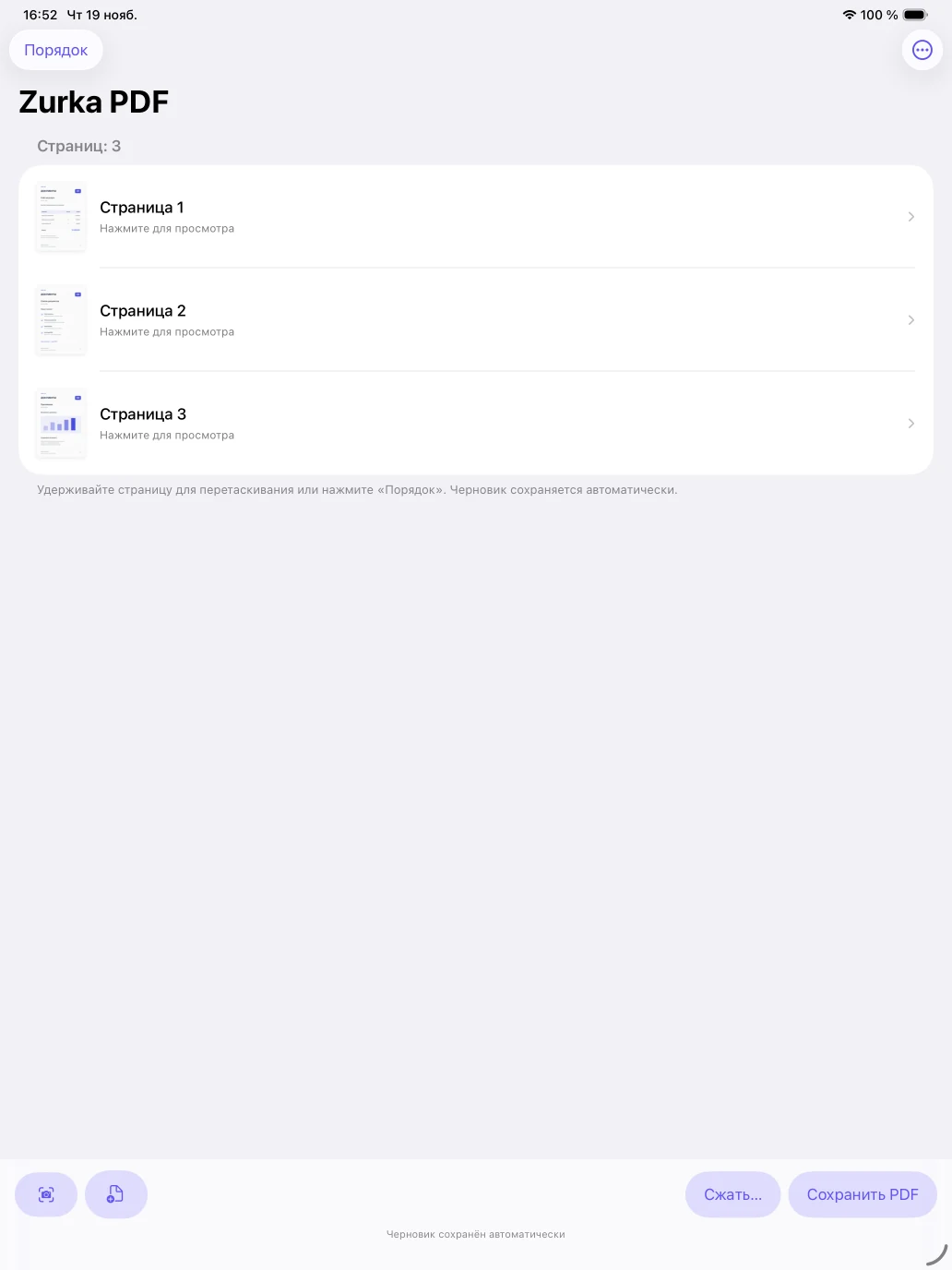
Scan sheets, capture them with the camera on iPhone or iPad, or add existing PDF. New pages are added to the end of the document.
Zurka PDF · Mac, iPhone, and iPad
Scan sheets, add existing PDF, and arrange the pages. Prepare a clean copy for printing or reduce its size for sharing.
macOS 14+ · Apple Silicon · iOS / iPadOS 17+
From the first sheet to the finished file
Your working draft is saved automatically. You can return to it after closing the app.
Scan sheets, capture them with the camera on iPhone or iPad, or add existing PDF. New pages are added to the end of the document.
Drag pages into the order you want, rotate them, or remove any you don't need. Clean up the background and choose a page size if needed.
Choose where to save it. The app will confirm when it's done and offer to open the file. You can prepare a smaller copy for sharing.
Everything for one document
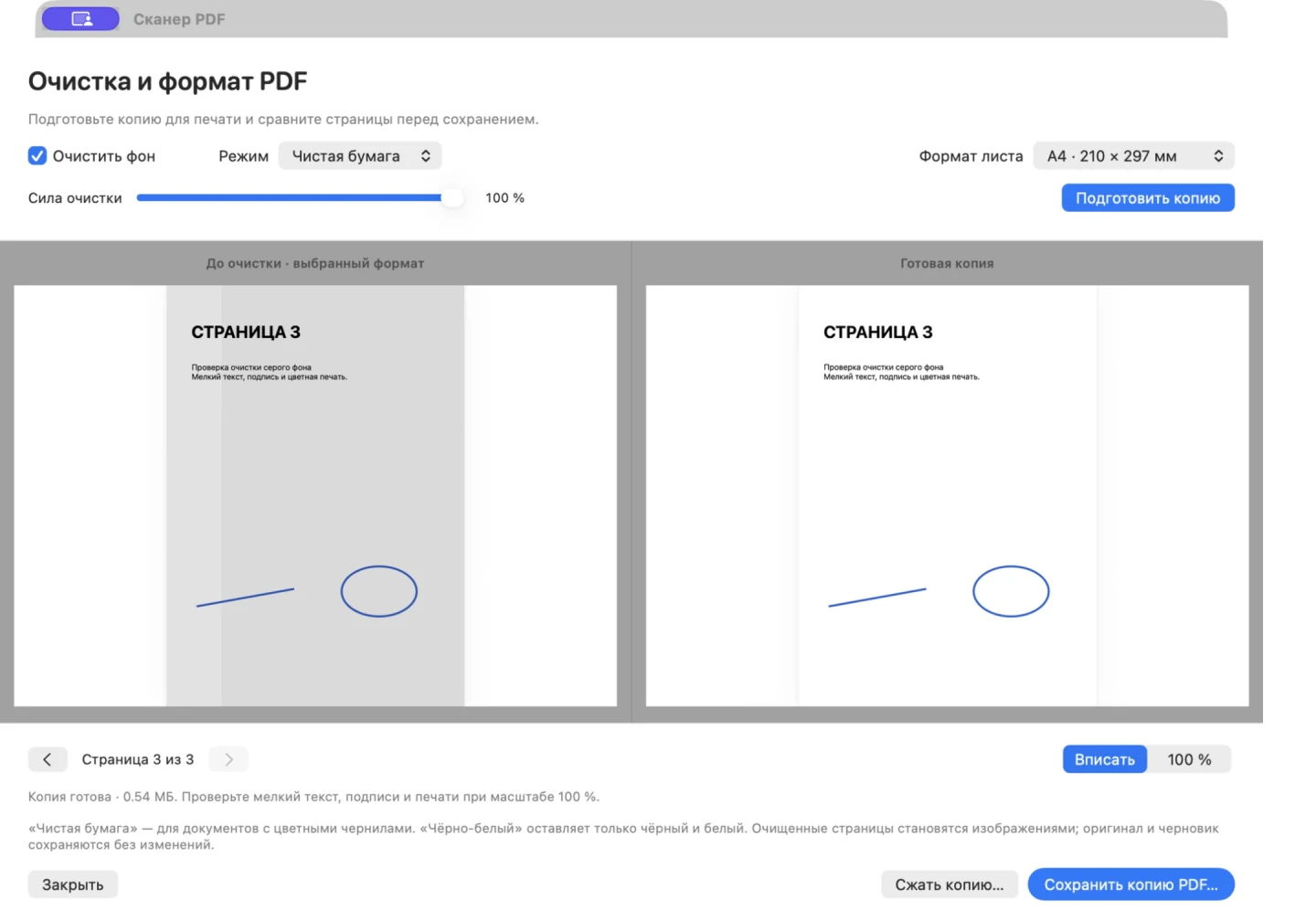
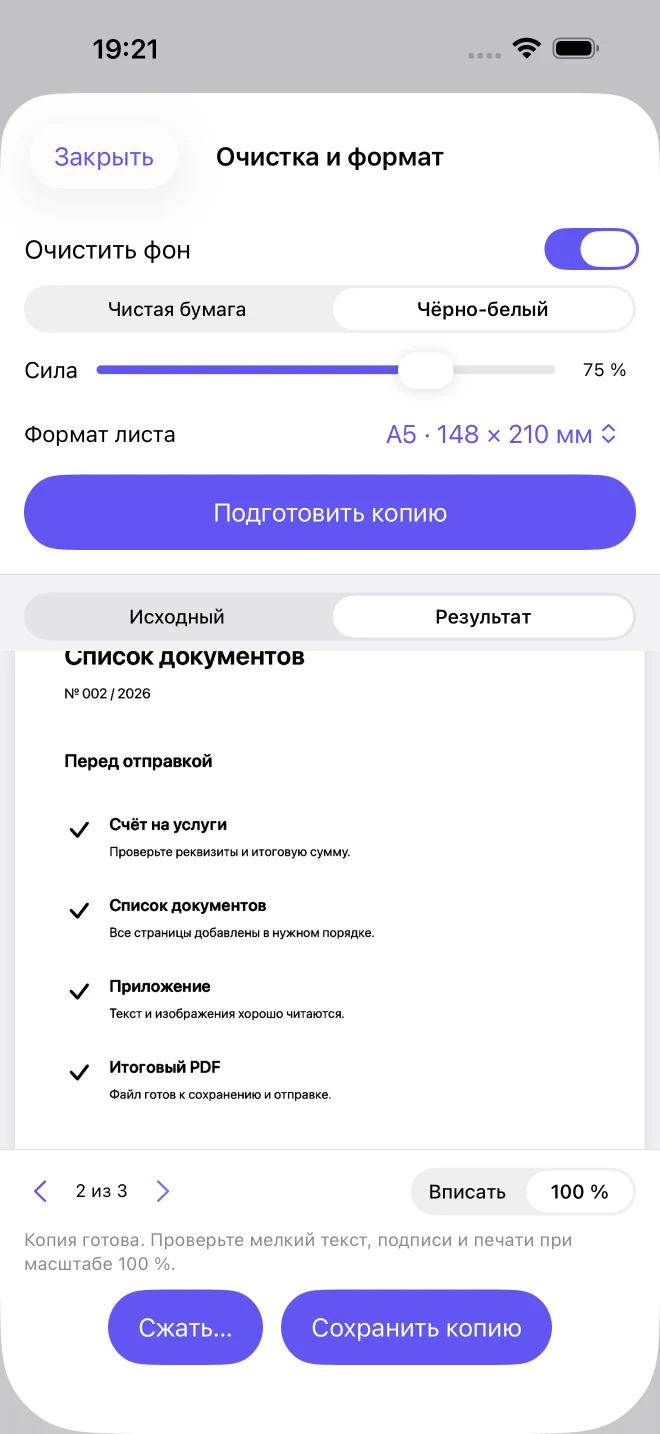
“Clean paper” lightens the background while preserving colored ink. “Black and white” keeps only black and white pixels. You can change only the page size by turning cleanup off.
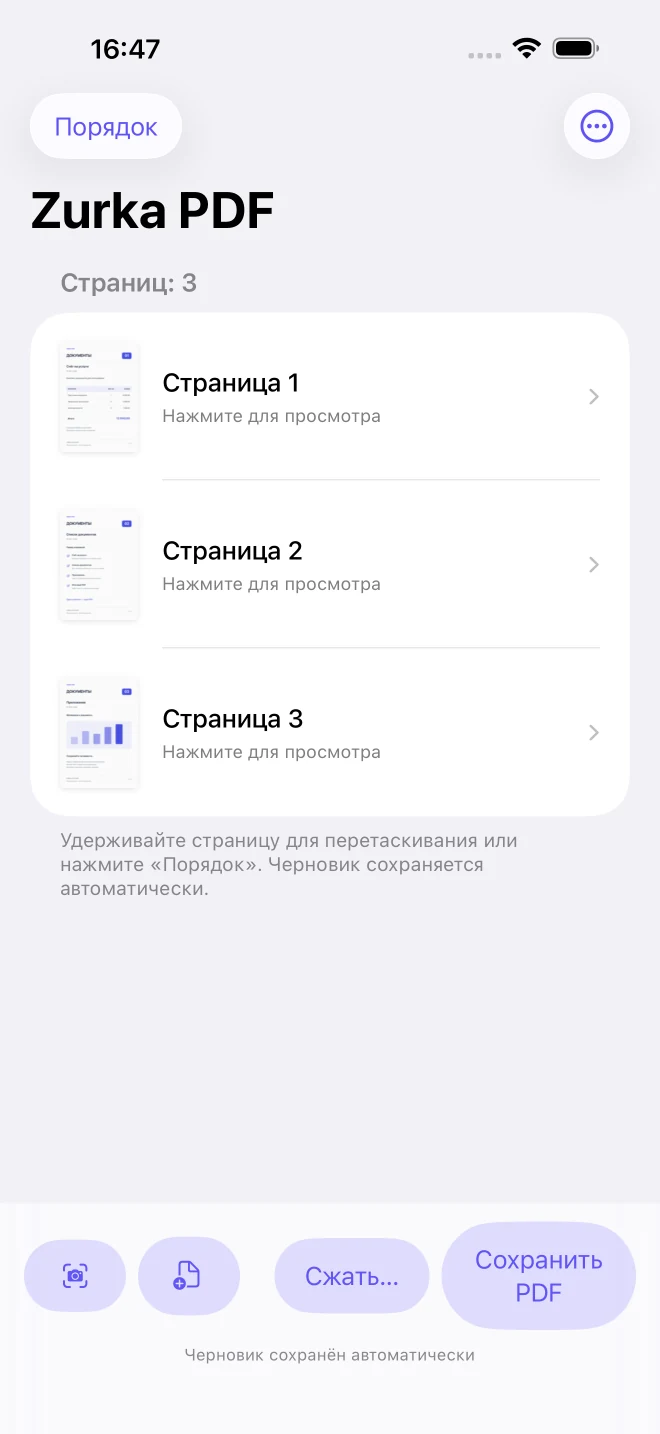
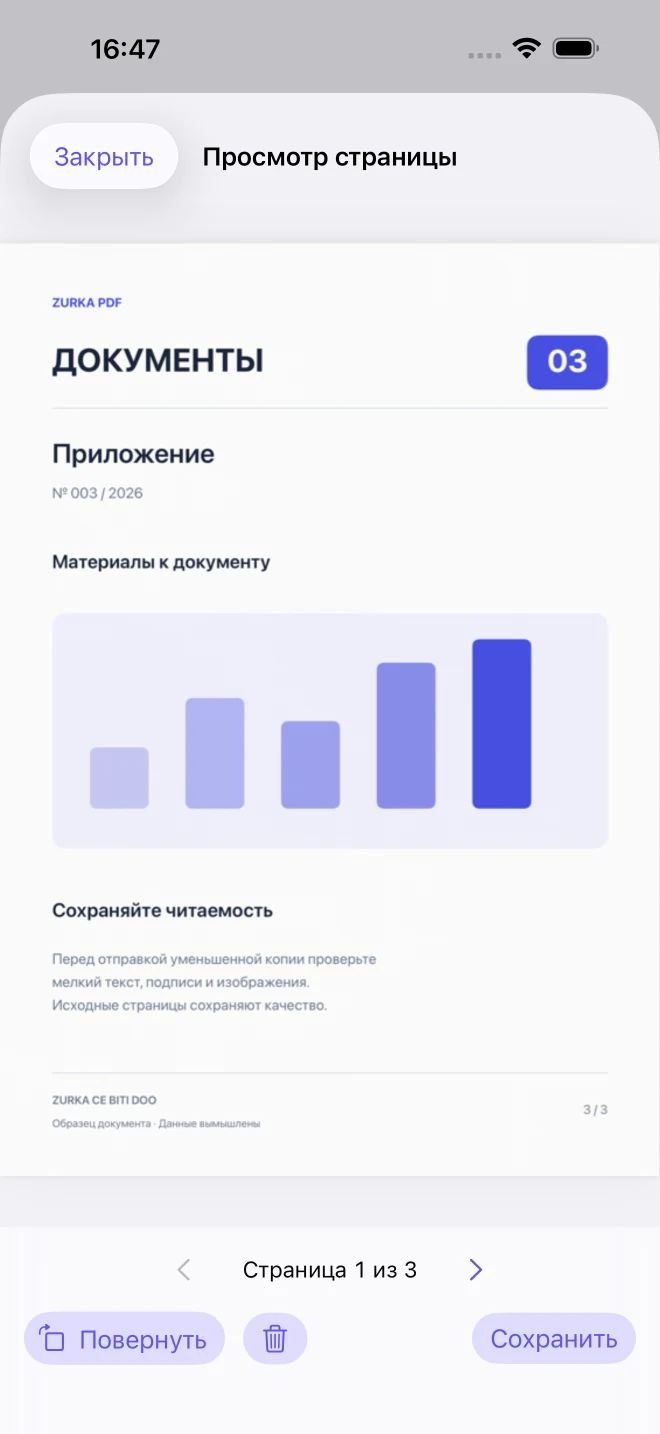
Combine multiple PDF with scans. Reorder pages by dragging, preview them, rotate them, and remove any you don't need.
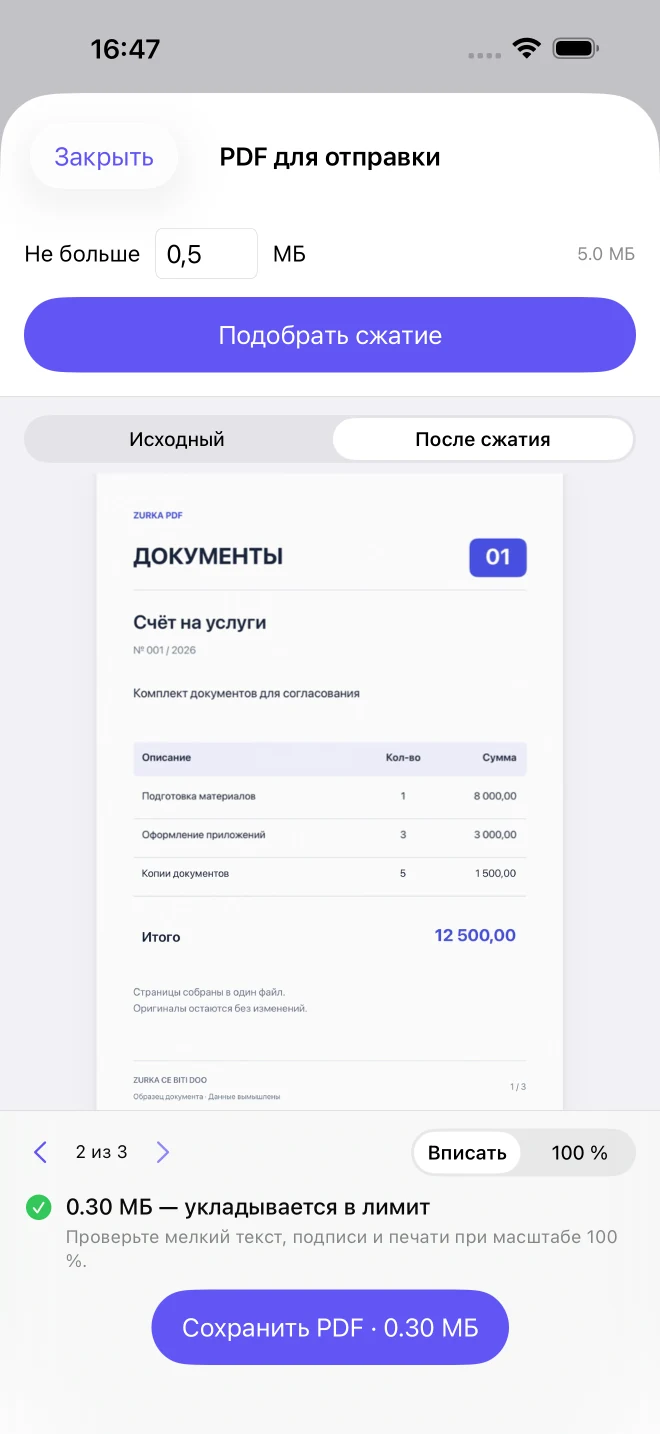
Set a limit in megabytes. The app will adjust compression, show the actual file size, and let you compare the original with the result.
On iPhone and iPad, use the camera or a compatible Wi-Fi scanner via eSCL / AirScan. On Mac, use a scanner available in macOS via Wi-Fi or USB.
Copy for printing
Lighten a gray background or choose black-and-white mode. Adjust the cleanup strength and compare the result with the original, including at 100 % zoom.
Illustration, not the result of processing your fileApp access
The Mac version is currently available for individual installation. The app for iPhone and iPad is in closed testing in TestFlight. There is no public download or release in App Store yet.
For Mac, you need a scanner that supports macOS. For iPhone and iPad, use eSCL / AirScan on the same local network. Scanning via Wi-Fi has been tested with Canon G3060; compatibility depends on the specific model. The presence of AirPrint alone does not confirm scanning support.
The result depends on the number of pages and their content. The app measures the finished file and reports whether it meets the limit. Before saving, you can check the readability of small text, signatures, and stamps.
Processing and the working draft stay on your device. You don't need an account to use the app. When saving or sharing, you choose the folder, app, or cloud storage yourself using system tools.